
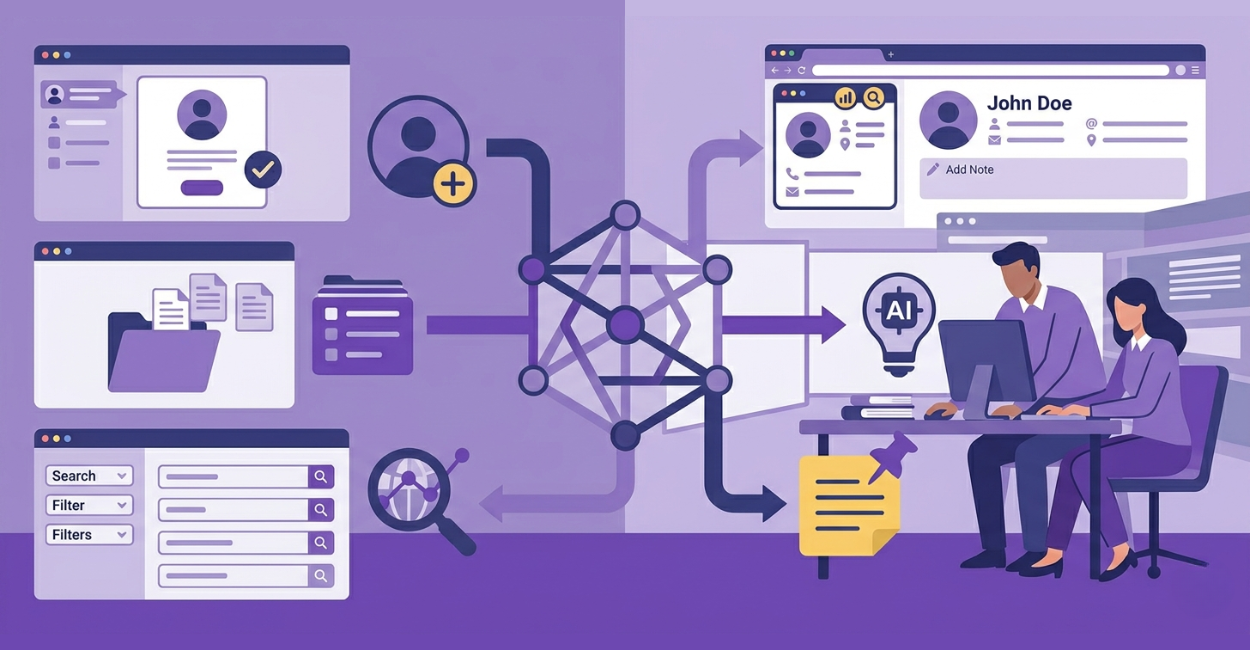
If you’re serious about building relationships, closing deals, and staying organized, the Networking Tab in evyAI is where everything comes together.
This feature has evolved into a full relationship intelligence system, giving users the ability to find prospects, organize contacts, enrich data, and engage strategically all in one place.
In this guide, we’ll break down exactly how the Networking Tab in evyAI works and how to use it step by step to improve your prospecting and outreach.
What Is the Networking Tab in evyAI?
The Networking Tab in evyAI is your central hub for managing relationships.
Instead of juggling spreadsheets, CRMs, and notes, everything lives inside one system where you can:
- Save and organize profiles
- Find new prospects using real data
- Enrich contacts with emails, phone numbers, and insights
- Run AI-powered research
- Add notes and track conversations
This shift transforms evyAI from a simple tool into a complete networking and prospecting engine.
Step 1: Save Profiles to Build Your Network
The first step in using the Networking Tab in evyAI is saving the right people.
How to Save a Profile:
- Visit a profile
- Open the evyAI side panel
- Click Save Profile
- Manually enter the details (name, company, headline)
- Choose a list or create a new one
- Click Save
You can also:
- Upload contacts via CSV (great for bulk prospecting)
- Save up to thousands of profiles (depending on your plan)
Step 2: Organize Contacts with Lists
As your network grows, organization becomes critical.
Inside the Networking Tab in evyAI, you can create custom lists such as:
- Leads
- Clients
- Partners
- Event connections
How to Organize Lists:
- Go to the web app
- Open the Networking Tab
- Click Lists
- Create, edit, or delete lists
Keeping your lists clean allows you to find and engage with your connections faster.
Step 3: Accelerate Prospecting with the Directory
Finding the right people to connect with doesn’t always have to start from scratch.
The Directory feature inside evyAI gives Pro users access to curated prospect lists that help you identify and connect with highly targeted audiences faster.
What Is the evyAI Directory?
In the Directory you’ll find pre-built and custom prospect lists available within the Networking Tab.
For example, users may access lists for:
- INC5000 2025 List
- Chiropractors Who Network In the US
- Executives Who Sold Their Business
- CEOs of HVAC Companies In Florida
How to Use the Directory
- Open the Networking Tab in the evyAI web app
- Navigate to the Directory
- Browse available lists
- Select a directory that matches your target audience
- Review contact information and profile details
- Save prospects directly into your own networking lists for follow-up
Step 4: Find Prospects with Precision
One of the most powerful features in the Networking Tab in evyAI is Find Prospects.
Instead of guessing who to reach out to, you can search using real data.
You can search by:
- Company domain
- Name
- Company name
- Phone number
- Profile URL
You can also apply filters like:
- Location
- Industry
This allows you to target decision-makers with precision, not randomness.
Once you find the right people:
- Select them
- Click Save Connection
- Add them directly to your lists for follow-up
Step 5: Enrich Profiles with Contact Data & Insights
After saving a profile, the next step is enrichment.
How Enrichment Works:
- Open a saved profile
- Click Enrich
evyAI retrieves:
- Email addresses
- Phone numbers
- Additional links
On higher plans, you’ll also get:
- Multiple contact options
- A full profile summary
- Target market insights
- Suggested talking points
- Ready-to-send email drafts
This eliminates guesswork and helps you reach out with confidence and context.
Step 6: Use AI Research Agents for Deeper Insights
Sometimes basic data isn’t enough. That’s where AI research comes in.
With the evyAI Pro plan, you can deploy AI Research Agents.
How to Use AI Research:
- Open a saved profile
- Go to the research section
- Choose an AI agent
- Click Generate
evyAI creates a detailed summary of the person, helping you understand:
- Their background
- Their expertise
- Their recent activity
You can then save this information for future use.
Step 7: Add Notes to Strengthen Relationships
Great networking is about remembering details.
With the Networking Tab in evyAI, Pro members can store notes directly inside each profile.
What to Track:
- Where you met
- Personal details
- Follow-up ideas
- Next steps
How to Add Notes:
- Go to the Networking section
- Open a saved profile
- Click Add Note
- Save your update
This ensures every interaction feels personal and intentional.
Step 8: Turn Research Into Action
The real power of the Networking Tab in evyAI is how everything connects.
Once a profile is saved and enriched, you can:
- Review insights
- Check recent activity
- Engage with their content
- Start conversations
Instead of cold outreach, you’re building warm, informed connections.
The Networking Tab in evyAI isn’t just a feature, it’s a smarter way to approach business development.
When you combine:
- Profile saving
- List organization
- Prospect search
- Enrichment
- AI research
- Notes
You create a system that turns networking into a repeatable, scalable process.
Start by saving a few key profiles, organize them into lists, enrich their data, and engage with intention.
That’s how real relationships (and real results) are built.
Try out evyAI for FREE by installing the Chrome extension here.
If you like evyAI consider upgrading to a Premium or Pro subscription for unlimited posts, comments, and more.